Cold email deliverability is the difference between landing in inboxes and disappearing into spam folders. You have spent weeks building a prospect list. The copy is good. You hit send on your first campaign. Two days later, 4% open rate. Not 4% reply rate. 4% open rate. Your emails are sitting in spam, unread, doing nothing.
This happens to most UK businesses that try cold email without understanding the cold email infrastructure behind it. The content does not matter if the email never reaches the inbox. And in 2025 and 2026, Gmail, Outlook, and Yahoo have all tightened their spam filters, making proper SPF, DKIM, and DMARC setup more important than ever.
This guide walks through everything you need to get your cold emails delivered, from domain setup and authentication to GDPR and PECR compliance. No prior technical knowledge required. If you have ever wondered what "warm up your domain" actually means, or why people keep mentioning SPF and DKIM, this is for you.
Why cold emails land in spam
Email providers (Gmail, Outlook, Yahoo) are in a constant battle against spam. Their job is to protect their users from unwanted messages. To do that, they look at several signals when deciding where to put your email.
- Domain reputation. Is this domain new? Has it sent spam before? Do recipients engage with emails from it?
- Authentication. Has the sender proved they are who they say they are? (This is where SPF, DKIM, and DMARC come in.)
- Sending patterns. Did this account go from zero emails to 500 overnight? That looks like a spammer.
- Content signals. Does the email contain spammy words, too many links, or heavy HTML formatting?
- Engagement. Do people open, reply to, and interact with emails from this sender? Or do they ignore and delete them?
If you fail on any of these, your emails go to spam. If you fail on several, your entire domain can be blacklisted, meaning every email you send goes to spam, including replies to people who emailed you first.
Since February 2024, Gmail and Yahoo have enforced strict requirements for bulk senders: valid SPF and DKIM records, a DMARC policy in place, a one-click unsubscribe link, and complaint rates below 0.3%. Google's sender guidelines make this explicit. Microsoft followed in May 2025, requiring the same authentication for anyone sending more than 5,000 emails per day to Outlook recipients.
The good news is that all of this is fixable. It just requires doing the setup properly before you send your first campaign.
How to set up separate domains, TLDs, and decide how many you need
The first rule of cold email — never send from your main business domain.
If your company website is yourcompany.co.uk, do not send cold emails from yourname@yourcompany.co.uk. If those cold emails get flagged as spam (and some inevitably will), it damages the reputation of your main domain. That means your regular business emails, invoices, proposals, replies to clients, could start landing in spam too.
Instead, buy separate domains that look similar to your main one. Think of them as disposable vehicles for outreach. If one gets damaged, you replace it. Your main domain stays clean.
How to choose your domains
Pick 2-3 domains that clearly relate to your brand but are distinct from your primary domain. Good examples.
- getyourcompany.com
- yourcompany.io
- yourcompany.co.uk (if your main is .com, or vice versa)
Stick to reputable TLDs (the part after the dot). .com is the gold standard for deliverability because email providers trust it the most. .co.uk, .co, .io, and .ai are also broadly trusted. Avoid cheap, novelty extensions like .xyz, .click, .top, or .download. Spamhaus ranks these among the worst for spam, and email providers treat them accordingly.
We recommend registering your domains with Cloudflare Registrar. Cloudflare sells domains at cost (no markup), includes WHOIS privacy for free, and gives you excellent DNS management, which you will need for SPF, DKIM, and DMARC setup in the next section. Set each domain to redirect to your main website. If a prospect types your sending domain into their browser, they should land on your real site.
Do not use subdomains of your main domain
Some guides suggest using outreach.yourcompany.co.uk instead of buying separate domains. This is risky. Subdomain reputations can still affect the root domain. If your outreach subdomain gets blacklisted, it can drag your main domain down with it. Separate domains give you complete isolation.
How to set up SPF, DKIM, and DMARC for cold email
These three acronyms are the reason most cold emails fail before the content even matters. They sound technical, but the concept is simple — they prove to email providers that you are allowed to send from your domain, and that nobody is faking your identity.
SPF (Sender Policy Framework)
Think of SPF as a guest list for your domain. It is a small text file you add to your domain's DNS settings that says, "These mail servers are allowed to send emails on behalf of this domain. Nobody else."
When Gmail receives an email from your domain, it checks the SPF record. If the email came from a server on the list, it passes. If not, it fails, and the email is more likely to be marked as spam.
For Google Workspace, your SPF record includes _spf.google.com. For Microsoft 365, it includes spf.protection.outlook.com. Your registrar's DNS settings page is where you add this. It looks like a single line of text.
DKIM (DomainKeys Identified Mail)
DKIM is a digital signature. When you send an email, your mail server adds an encrypted signature to the message headers. The receiving server checks that signature against a public key published in your DNS. If they match, the email has not been tampered with in transit.
You do not need to understand the cryptography. The important thing is that both Google Workspace and Microsoft 365 provide you with the keys. You copy them into your DNS settings, then turn on DKIM signing in your email provider's admin panel. The whole process takes about 10 minutes per domain.
DMARC (Domain-based Message Authentication, Reporting and Conformance)
DMARC ties SPF and DKIM together and tells receiving servers what to do if an email fails authentication. It also sends you reports so you can see who is sending emails using your domain (including potential spoofers).
Start with a "monitor only" policy (p=none) which collects data without blocking anything. After 4-8 weeks of clean sending, you can tighten it to p=quarantine (send failing emails to spam) and eventually p=reject (block them outright).
How to verify your setup
After configuring all three records, send a test email from each mailbox to Mail-Tester.com. It gives you a score out of 10 and shows exactly whether SPF, DKIM, and DMARC are passing. You can also use MXToolbox to check your DNS records directly. Aim for a clean pass on all three before you start any sending.
Let AI handle the DNS setup for you
We are in the era of AI tooling, and this is one of the areas where it genuinely saves time. If you have access to an advanced AI coding tool like Claude Code, you can connect it to Cloudflare, purchase your domains, and have it set up all the SPF, DKIM, DMARC, and MX records for you. It will create the right DNS entries, configure the redirect to your main site, and explain what each record does as it goes.
If this is your first time setting up email authentication, this approach is worth trying. Not because it replaces understanding, but because it teaches you. You watch the AI create each record, ask it why that record exists, and learn the reasoning behind each step. After doing it twice, you will understand the process well enough to set it up yourself without any help.
Think of it as a guided walkthrough that also does the work for you. Practical shortcut first, knowledge second.
The best way to create your sending accounts
You need paid email accounts on your new domains. Free Gmail or Outlook.com accounts will not work for cold outreach. They have low sending limits (500 per day for free Gmail), they look unprofessional, and they violate the providers' terms of service for commercial sending.
The traditional options are Google Workspace (~£5/user/month) and Microsoft 365 (~£4.50/user/month). Both work, but there is a better approach if you are building infrastructure specifically for cold outreach.
Why we recommend ZapMail
We use and recommend ZapMail for creating outreach mailboxes. ZapMail is purpose-built for cold email infrastructure. It creates Google Workspace and Microsoft 365 accounts under their own managed domains, handles all the DNS and authentication configuration for you, and connects directly to sending platforms like Smartlead.
The advantage over setting up Google Workspace or Microsoft 365 yourself is speed and simplicity. You can spin up dozens of fully authenticated mailboxes across multiple domains in minutes, with SPF, DKIM, and DMARC already configured correctly. No fiddling with DNS records, no waiting for propagation, no risk of misconfiguration.
Why diversify providers
Whether you use ZapMail or set up accounts manually, use a mix of Google and Microsoft accounts. If Gmail's spam filters tighten on a particular day, your Microsoft-sent emails may still get through, and vice versa. It also looks more natural to receiving mail servers when your emails come from different server infrastructure.
How many mailboxes per domain
Keep it to 3-5 mailboxes per domain. Each mailbox carries its own sender reputation, and spreading your sends across multiple accounts prevents any single one from triggering volume-based filters. With 2 domains and 5 mailboxes each, you have 10 sending accounts, which is more than enough for 1,000-2,000 emails per month.
ZapMail (Recommended)
- SPF, DKIM, DMARC auto-configured
- Direct integration with Smartlead
- Google + Microsoft accounts in one dashboard
- Spin up mailboxes in minutes, not hours
DIY (Google Workspace + Microsoft 365)
- Full control over account settings
- Use accounts for regular business email too
- Manual DNS configuration required
- ~£5/user/month (Google) or ~£4.50/user/month (Microsoft)
Use personal-sounding email addresses like firstname@domain.com or first.last@domain.com. Avoid generic addresses like sales@ or info@. Set up each account with a real-looking display name and, for Google accounts, add a profile photo. These small details make your emails look like they come from a real person, not a mass-sending machine.
How to warm up your cold email domain (and how long it takes)
This is where most people get impatient and make mistakes. You have your domains, your DNS is configured, your mailboxes are set up. You want to start sending. Do not.
A brand new domain and mailbox have no reputation. Email providers do not trust them yet. If you send 200 cold emails from a fresh account, Gmail's spam filters will flag it immediately — "New domain, no sending history, sudden burst of outgoing mail. Probably spam." Your domain reputation gets damaged before you have even started, and recovering from early damage is slow and sometimes impossible.
What warming actually does
Warming builds a positive sending history. Over several weeks, your accounts exchange emails with real inboxes, generating opens, replies, and normal-looking email activity. Email providers see this and gradually build trust in your domain.
We use and recommend Smartlead for sending and warming. Smartlead includes built-in warm-up that connects your accounts to a network of real inboxes that automatically send and reply to your emails, mark them as "not spam" if they land in junk, and simulate natural two-way conversations. It integrates directly with ZapMail, so connecting your mailboxes is seamless. Alternatives like Instantly and Lemlist also offer warm-up, but we have found Smartlead's warm-up network and inbox rotation to be the most reliable.
A typical warm-up timeline
Week 1 — 1-5 emails per day per mailbox
Simple warm-up interactions only. No cold emails. Let the warm-up tool handle everything. Your accounts are building their first reputation signals.
Week 2 — 5-10 emails per day
Volume increases gradually. Still warm-up only. You should start seeing data appear in Google Postmaster Tools if your domain has been verified there.
Week 3 — 15-20 emails per day
Check your warm-up stats. If the tool shows that emails are consistently landing in inboxes (not being rescued from spam), you are on track. Some practitioners start a tiny trickle of cold emails at this stage, maybe 5 per day alongside the warm-up traffic.
Weeks 4-6 — 30-40 emails per day
Your domains should now have a visible reputation. Run inbox placement tests using Mail-Tester or GlockApps. If results are clean, begin ramping cold email volume alongside continued warm-up. Never turn warm-up off.
Industry guidance from Microsoft's own marketing documentation recommends 4-8 weeks of increasing volume and high engagement to reach full deliverability. Experts in the cold email community recommend a minimum of 14 days, with 4-6 weeks being the safer target.
Never turn off warm-up
Keep warm-up running permanently, even after you start sending cold emails. The positive engagement from warm-up emails offsets any negative signals from cold emails that get ignored. If you pause cold outreach for a week, warm-up keeps your domain active and healthy. Turning it off is one of the most common causes of reputation decay.
Writing emails that do not trigger spam filters
Even with perfect technical setup, the content of your emails matters. Spam filters in 2025 use AI to analyse not just keywords but patterns, formatting, and behaviour.
Keep it short and plain
Emails under 125 words see the highest reply rates. Short subject lines of 2-4 words perform best for opens, hitting around 46% open rates in one study. Plain-text emails (no images, no heavy HTML, no fancy buttons) outperform designed emails by over 20% on reply rates. Your cold email should look like something a person typed from their laptop, not a marketing campaign.
Content rules that protect deliverability
- Limit links. One link maximum in your first email. Zero is even better. Multiple links, especially tracking links, are a major spam trigger.
- No attachments. Ever. Not even a PDF case study. Attachments in cold emails cut reply rates in half and raise spam flags.
- No images. That includes logos in your signature. Images in cold emails signal "marketing blast" to spam filters.
- Avoid trigger words. Words like "free", "guaranteed", "act now", "limited time", and ALL CAPS phrases are classic spam signals.
- Personalise genuinely. Mention something specific about the recipient's company, role, or recent activity. Generic mail-merge tokens ({FirstName} and nothing else) do not count. Spam filters can detect templated emails sent to hundreds of people.
- Vary your copy. If you send the exact same subject line and body to 500 people, filters notice. Use variations, swap sentences, and rotate subject lines across your campaign.
For a deeper look at how to structure your outreach sequences and build prospect lists that convert, see our guide on lead enrichment and automation funnels.
How many cold emails you can safely send per day per mailbox
This is the question everyone asks, and the answer is lower than most people expect.
While Google Workspace officially allows 2,000 emails per day and Microsoft 365 allows up to 10,000, these are technical maximums, not safe operating limits. Sending anywhere near those numbers from a cold outreach account will get you flagged.
The safe range for cold email is 20-50 emails per day per mailbox. Under 50 per day, spread throughout business hours with randomised timing, usually keeps you under spam filter radar. Going above 50 is possible with very warm domains and clean lists, but the risk increases sharply.
| Your setup | Emails per day | Emails per month |
|---|---|---|
| 2 domains, 5 mailboxes each, 20/day each | 200 | ~4,000 |
| 2 domains, 5 mailboxes each, 40/day each | 400 | ~8,000 |
| 3 domains, 5 mailboxes each, 30/day each | 450 | ~9,000 |
| Based on weekday sending only (20 business days/month) | ||
Spread your sends across an 8:30am-5:30pm window, Monday to Friday. Use random delays between emails (2-5 minutes). Your cold email platform should handle this automatically through inbox rotation, cycling through your accounts so no single mailbox bears too much load.
Scale horizontally, not vertically
When you need more volume, add more mailboxes or domains rather than pushing existing ones harder. Two mailboxes sending 40 emails each is safer than one mailbox sending 80. Each new mailbox needs its own warm-up period, so plan ahead. Buy and warm domains a month before you expect to need them.
How to monitor your cold email deliverability
Sending emails and hoping for the best is not a strategy. You need to actively monitor whether your emails are reaching inboxes.
The tools you need (most are free)
- Google Postmaster Tools (free). Add your sending domains and verify them with a DNS record. Once you have sent enough volume, Google shows your domain reputation (High, Medium, Low, Bad), spam rate, and authentication pass rates. This is the single most important monitoring tool.
- MXToolbox blacklist check (free). Run your domains through this weekly. It checks dozens of major blacklists at once. If you appear on Spamhaus or Barracuda, you need to act immediately.
- Mail-Tester (free). Send a test email and get an instant score. Useful for checking SPF, DKIM, DMARC, and SpamAssassin scoring on demand.
- Your sending platform's dashboard. Track open rates, bounce rates, and reply rates per mailbox and per domain. A sudden drop in open rates often means your emails have started hitting spam.
Warning signs to watch for
- Open rates dropping below 20% (for campaigns that previously opened at 30-40%)
- Bounce rate above 2%, which signals list quality problems or domain blocking
- Google Postmaster showing "Low" domain reputation
- Warm-up tool reporting that emails need "rescuing" from spam folders
- Recipients telling you "your email went to spam"
If you spot these signs, reduce sending volume on the affected domain immediately. Increase warm-up traffic. If a domain is on a major blacklist, stop all cold sending from it and begin the delisting process through the blacklist provider's website.
What GDPR and PECR actually require for UK cold email
This is where many UK businesses talk themselves out of cold email entirely. The legal position is simpler than most people think.
The short version
In the UK, you can legally send cold emails to people at their corporate email addresses without prior consent. This is explicitly allowed under PECR (Privacy and Electronic Communications Regulations), which exempts corporate subscribers from the opt-in requirement for direct marketing emails. The ICO's own guidance confirms this.
However, there are important rules and boundaries.
What you must do
- Have a lawful basis under GDPR. Even though PECR does not require consent for B2B emails, GDPR still applies because you are processing personal data (the person's name and email). The correct lawful basis is "legitimate interest", not consent. Document this with a Legitimate Interest Assessment that explains why your outreach is relevant and proportionate.
- Include an unsubscribe option in every email. An easy opt-out link or a clear "reply to unsubscribe" instruction. If someone asks to stop, honour it immediately. This is a legal requirement under GDPR's right to object to direct marketing.
- Identify yourself clearly. Your emails must include your company name and a way to contact you. No hiding who you are, no misleading subject lines, no fake "Re:" prefixes pretending to be part of an ongoing conversation.
- Only email corporate addresses. Sole traders and unincorporated partnerships are treated as individuals under PECR, meaning they need the same opt-in as consumers. Stick to people at limited companies emailing from corporate addresses (name@companyltd.co.uk), not personal Gmail or Hotmail accounts.
Sole traders are not corporate subscribers
This catches people out. If your prospect list includes freelancers, consultants, or sole traders, they are classified as individual subscribers under PECR. You need their consent before emailing them, just like B2C marketing. If you are unsure whether a business is a limited company or sole trader, check Companies House before adding them to your campaign.
What good compliance looks like in practice
- Document your legitimate interest reasoning. Keep a written record explaining your interest in reaching these prospects, why email is necessary, and why the intrusion is minimal (you target relevant decision-makers, you send a limited number of emails, and you provide easy opt-out).
- Maintain a suppression list. Everyone who unsubscribes or asks you to stop gets added to a permanent do-not-contact list. Check new prospect lists against it before every campaign.
- Update your privacy policy. Add a section explaining that you may contact business professionals using information from public sources, and that they can opt out at any time.
- Track your data sources. Know where you got each contact's information (LinkedIn, Apollo, company website) so you can answer honestly if someone asks "How did you get my email?"
Non-compliance carries real risk. The ICO can fine up to £500,000 for serious PECR breaches, and GDPR penalties go higher. Realistically, enforcement is usually triggered by complaints. If you follow these rules, you are well within legal boundaries.
The monthly cost of a proper cold email setup
This does not need to be expensive. Three domains from Cloudflare cost roughly £25 per year total (at cost, no markup). Mailboxes through ZapMail run about £3-5 per account per month. Smartlead's sending platform costs from about £30 per month, including built-in warm-up and inbox rotation. Total — roughly £80-130 per month for a fully operational setup, which is a fraction of the value of a single new client.
What a real dripfeed campaign looks like in practice
Theory is one thing. Here is what a live campaign looks like when you put all of this together.
We built a market-narrowing dripfeed campaign using exactly the stack described in this guide — Cloudflare domains, ZapMail mailboxes, and Smartlead for sending. The goal was not to close deals immediately, but to test nine different industries simultaneously and find out which ones respond best to cold outreach, then narrow the focus based on real data.
How the dripfeed works
Every day, 100 new leads are automatically enriched and added to the campaigns. Each lead gets a 3-email sequence. The campaigns run across nine industry verticals — healthcare (dental, medical, veterinary, and other), finance (accounting and financial advisers), legal, and agencies (marketing and design). The total pool — roughly 5,000 businesses, 3 decision-makers per business, for about 15,000 prospects across all verticals.
This is a slow-burner approach by design. Instead of blasting 5,000 emails on day one (which would destroy domain reputation), the dripfeed adds a steady trickle of new prospects daily, keeping sending volumes within safe limits per mailbox and building engagement data over weeks.
The numbers so far
Here is a live screenshot from the Smartlead dashboard. Nine campaigns running simultaneously, all built on the infrastructure described in this guide.
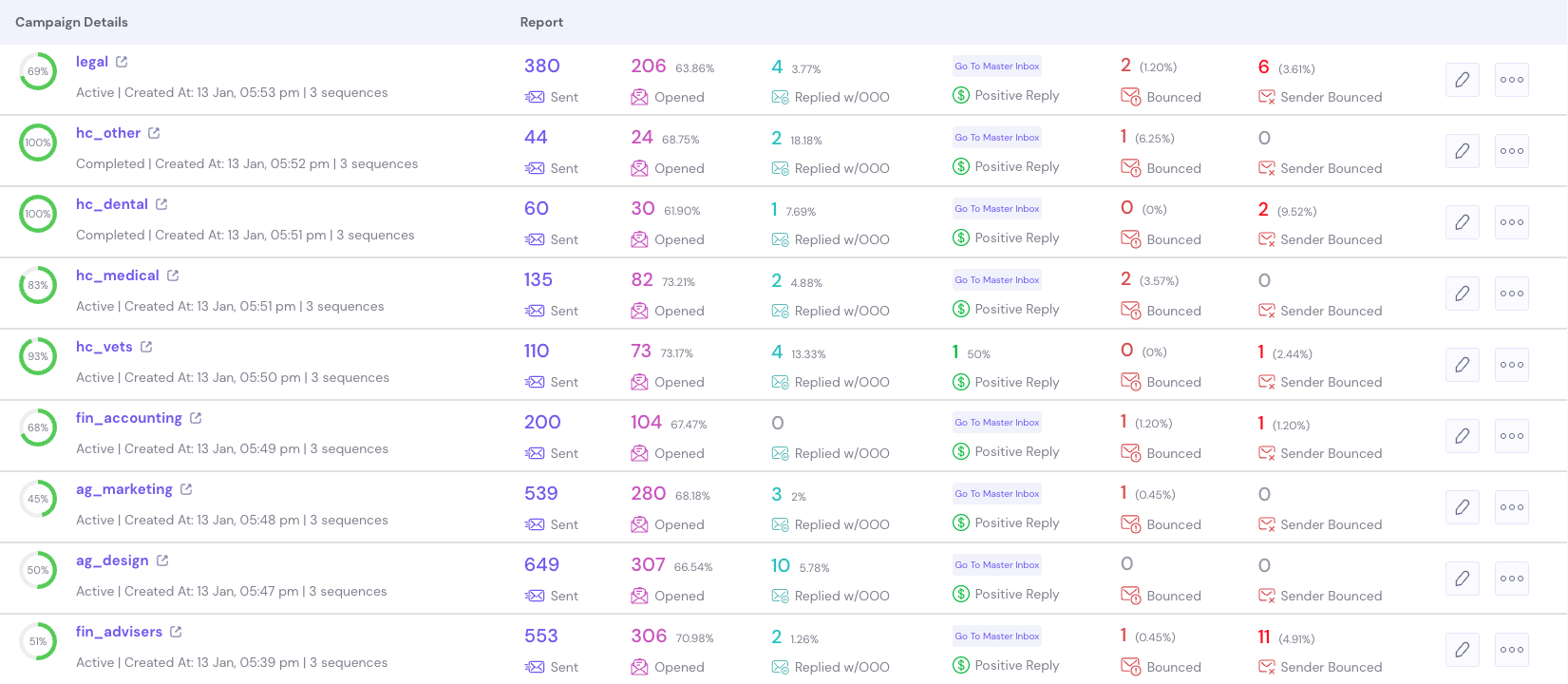
Look at the open rates. Every single campaign is sitting between 62% and 73%. That is not luck. That is the infrastructure doing its job — healthy domains, passing authentication, controlled sending volumes, and consistent warm-up. When deliverability is broken, you see open rates of 5-15%. These numbers confirm that every step in this guide, the separate domains, the authentication, the warm-up, the controlled sending, is working.
What the data tells us
The open rates prove the infrastructure works. The positive reply rates tell you where the opportunity is. Healthcare verticals are generating the strongest interest, while finance, legal, and agencies need different messaging or may not be the right fit for this particular offer.
This is exactly what a market-narrowing campaign is designed to reveal. The next phase is to double down on the verticals showing the most interest with refined messaging, while testing new angles for the rest. The infrastructure stays the same. The domains are warm, the mailboxes are healthy, and the sending patterns are established. What changes is the copy, the targeting, and the value proposition for each vertical.
A reality check on these numbers
You will notice the positive reply rates in that screenshot are low. That is expected, and it is worth being honest about it.
This is a dripfeed campaign designed to run over several weeks, not a blast that fires everything at once. The sending rate is deliberately low, 100 new leads per day across nine verticals. If you want more leads faster, the answer is not to send more from each mailbox (that damages deliverability). The answer is more domains and more email accounts to increase total volume while keeping each individual mailbox within safe limits.
The campaign shown is part test, part long-running outreach. The expectation is that replies build over time as we refine the messaging for each vertical, improve the targeting, and learn which angles resonate. The first version of any cold email campaign is rarely the best. You test, you adjust, you re-test. The infrastructure lets you do that safely.
Cold email is one pillar, not the whole strategy
Cold email outreach is actually the slowest and most time-consuming pillar of a full marketing strategy. It takes weeks to set up the infrastructure, weeks to warm up, and weeks more to test and refine messaging. The results compound over time, but they do not happen overnight.
For real traction, you need multiple pillars working together — content, SEO, referrals, partnerships, paid ads, social presence. Cold email is one channel. If you put all your eggs in it and expect instant results, you will be disappointed. It works best as a steady, background system that generates conversations while your other channels do their part.
It is also worth knowing that things change constantly in the cold outreach world. What worked last month might not work next month. Email providers update their filters, new regulations appear, warm-up tools adjust their networks. Staying effective means staying current and being willing to adapt your approach regularly.
The key takeaway
Cold email deliverability is a solved problem if you follow the process. Open rates of 62-73% across nine simultaneous campaigns prove that proper domain setup, SPF/DKIM/DMARC authentication, warm-up, and controlled sending volumes deliver. Once the technical foundation is solid, your results come down to two things — who you target and what you say to them. This cold email infrastructure was built entirely using the Cloudflare + ZapMail + Smartlead stack described in this guide.